
Table of contents
Claude skills are saved instructions that teach Claude to do one job, such as writing copy or auditing a page, the same way every time. I use Claude skills in my daily marketing work, across product marketing, SEO, AEO (getting cited in AI answers), outreach, email marketing, content and design.
This guide covers what agent skills and Claude skills are, how to install Claude skills in the Claude app and Claude Code, the mistakes to avoid and how to write your own Claude skill.
What Are Agent Skills?
An agent skill is a set of instructions that teaches your AI agent, AI assistant or LLM (large language model) how to perform a complete task, step by step, and what output to give.
Each agent skill comes as a folder: one required SKILL.md file plus optional helper files, such as reference files and scripts.
my-skill/
├── SKILL.md         # Required: the actual skill file (YAML frontmatter + instructions)
├── reference.md     # Optional: files that give the agent context
└── scripts/
└── do_thing.py # Optional: code the agent runs for repeatable tasks- SKILL.md (required) is the main skill file. SKILL.md contains a short header with the skill's name and a description of when to use the skill, then the step-by-step instructions the agent follows.
- Reference files (optional) are extra context files, such as
reference.md, your product context file or your brand voice guide, that the AI agent reads only when a step needs them. Reference files keepSKILL.mdshort. - Scripts (optional) are small programs, written in Python, Bash or JavaScript, that the AI coding assistant runs, instead of reading, to perform a particular task.
AI coding assistants such as Claude Code, OpenAI Codex, Cursor and GitHub Copilot run a skill's scripts to perform one particular task. SKILL.md tells the agent what to do, while a script is the repetitive part of the job: the same step the agent has to do every time it uses the skill.
On a repetitive task, a script saved in a skill saves time, credits and tokens (the small chunks of text AI usage is measured in) and keeps the output consistent, because the AI agent runs the same code instead of writing a new temporary script each time. Only a script's output, not its code, enters the context window, the AI agent's working memory, so the chat stays light.[1]
Agent skills use an open format any AI company can adopt, so one skill can work in more than 40 tools, including Claude, ChatGPT, Codex, GitHub Copilot and Cursor.[2]
If you are looking for the best Claude skills you could use for marketing, SEO, AEO, different marketing channels and UI design, you can check out my blog on the 14 best Claude skills.
Why is a skill written in Markdown?
An agent skill is written in Markdown because Markdown is easy for anyone to write and easy for AI agents such as Claude to read. Markdown (.md) is plain text with a few simple marks, such as # before a heading.
- Anyone can write Markdown: a simple skill is a few lines of instructions, with no code.
- Claude reads Markdown with no extra setup. A
.mdfile is plain text, so Claude opens it like any other text file, the way you open a note in Notepad or TextEdit, with no converter or special app.
SKILL.md opens with a short header, called YAML frontmatter, holding the skill's name and a description of when to use it. Below the YAML, SKILL.md has all the instructions, written in MD format.
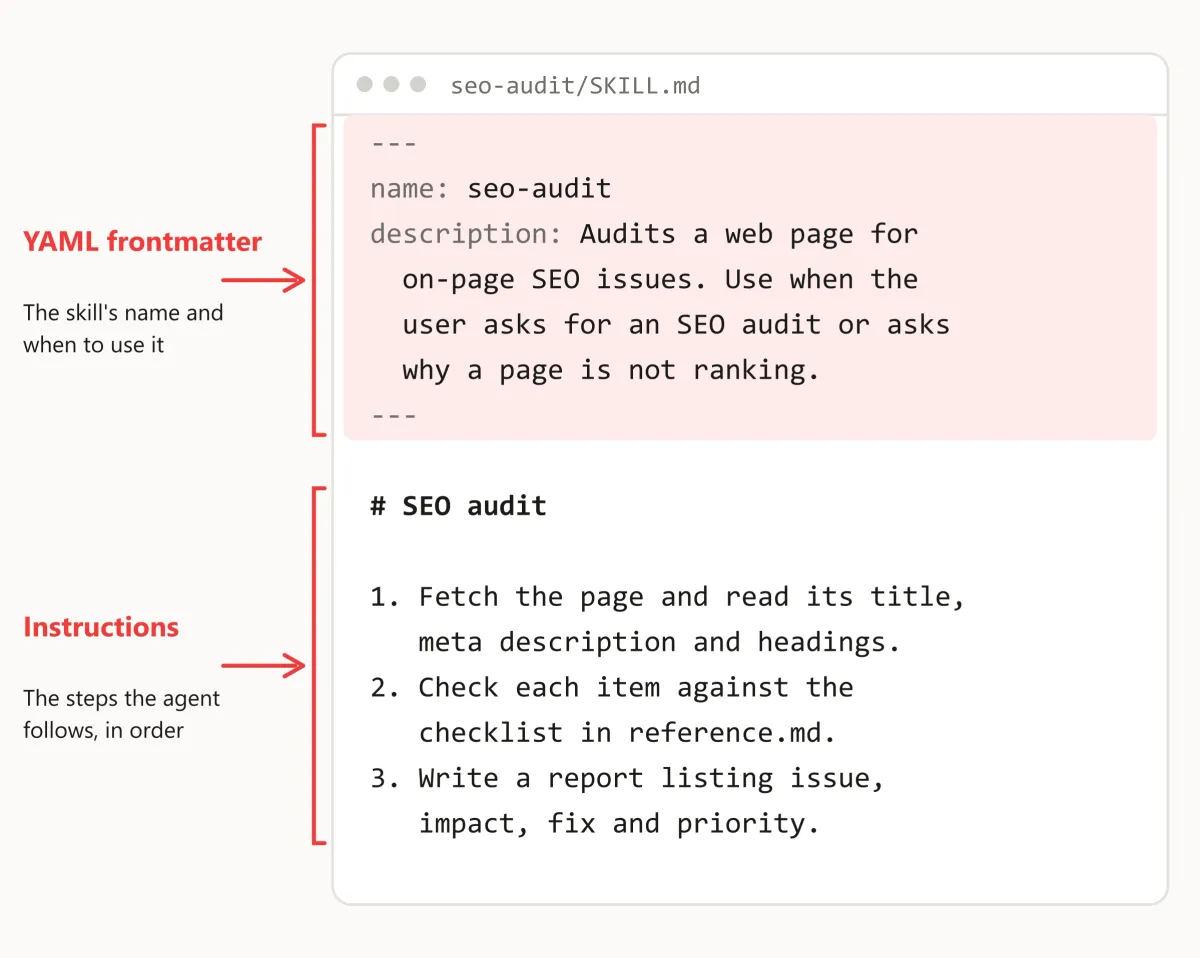
Helper files in a skill folder, such as scripts (small programs), reference documents and templates, can use formats other than Markdown.



Free AI Product Marketing Playbook to advance your career
Thanks. Your copy of the playbook is ready.
Download the PDFWhat Are Claude Skills?
Claude skills are agent skills that run on Claude, Anthropic's AI assistant. A Claude skill is a set of instructions, saved in a SKILL.md file, that teaches Claude how to do one task the same way every time.
Claude skills work in the Claude desktop app, on claude.ai and in Claude Code, Claude's AI agent for files and code.
Claude Code runs in your terminal (the command window) and as an extension in VS Code or Cursor.
Why is a skill better than a prompt?
A Claude skill is better than a prompt for any task you repeat, because Claude loads the skill by itself whenever the task comes up. A prompt, the message you type to Claude, works only in the chat where you type it.
I use agent skills to build content. Research and the first draft used to take most of my time, and now a skill gives me that first draft.
After a skill gives me the first draft, I do the manual work: I edit it, add my own experience, fix a few things, add new points and set the structure. Using a skill for the first draft saves me a lot of time.
How does Claude use a skill?
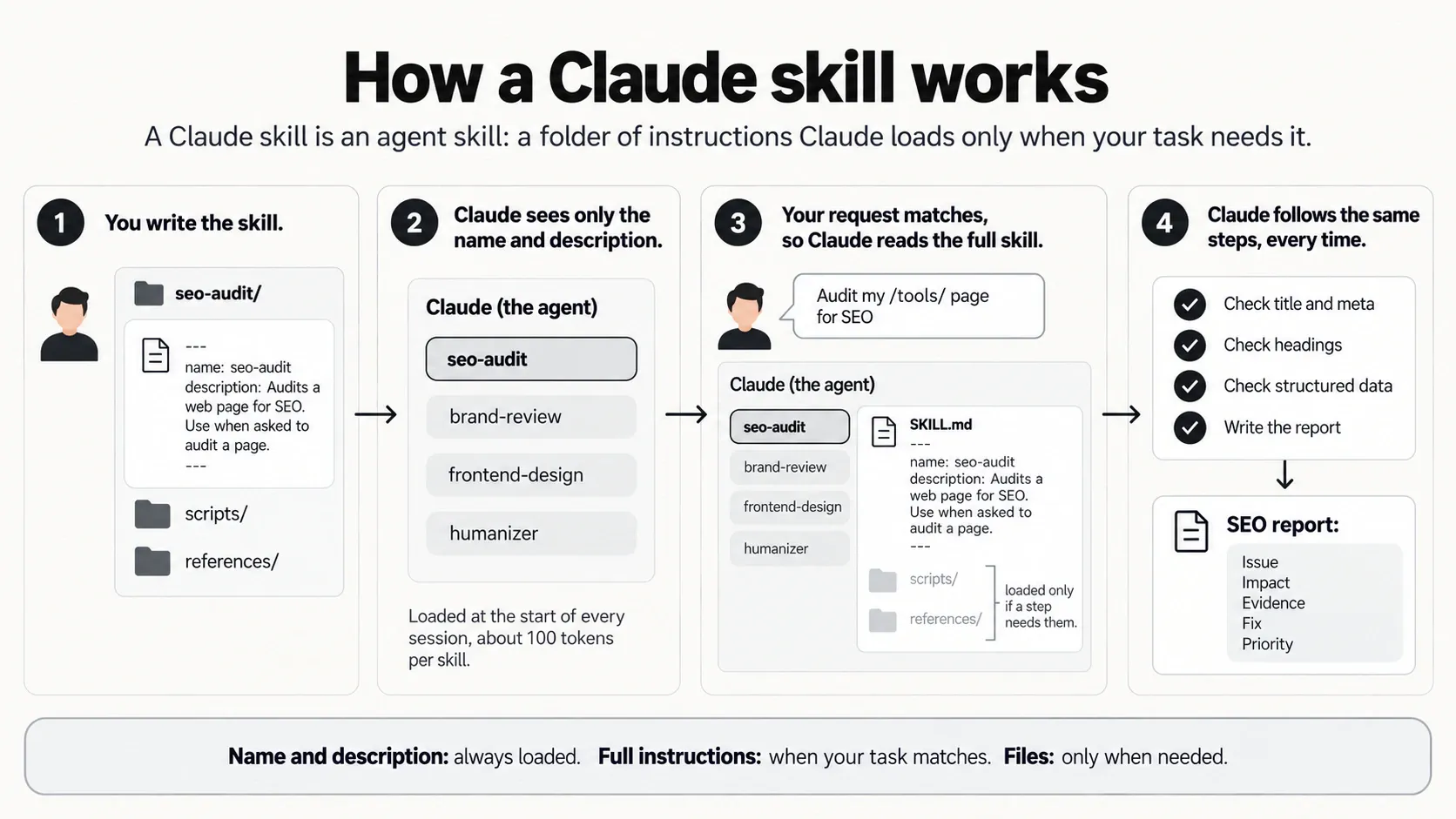
Claude uses a skill in 3 steps: it reads every installed skill's name and description, loads the full SKILL.md when your request matches, then follows the skill's instructions.
- At the start of every chat, Claude reads only the name and description of each installed skill, about 100 tokens per skill (a token is a word or part of one).[1]
- When your request matches a skill's description, Claude reads the complete
SKILL.mdfile. - Claude follows the instructions in
SKILL.mdand uses helper files, such as scripts and reference files, only when a step needs them.
Progressive disclosure means Claude loads a skill in steps, as needed, instead of all at once. Progressive disclosure lets Claude keep many skills ready without filling its context window, the working memory for each chat.
How Do You Install Claude Skills?
You install Claude skills in 2 ways: through the "Skills" menus in the Claude desktop app and claude.ai, or with one npx skills add terminal command for Claude Code.
In the Claude app and claude.ai
In the Claude desktop app and claude.ai, you add a skill from the "+" menu in the chat box, or you upload a skill from GitHub as a ZIP file on the "Skills" page, under the "Customize" tab in Settings.
On Free, Pro and Max plans, Claude skills need the "Code execution and file creation" setting turned on under Settings > "Capabilities".[3]
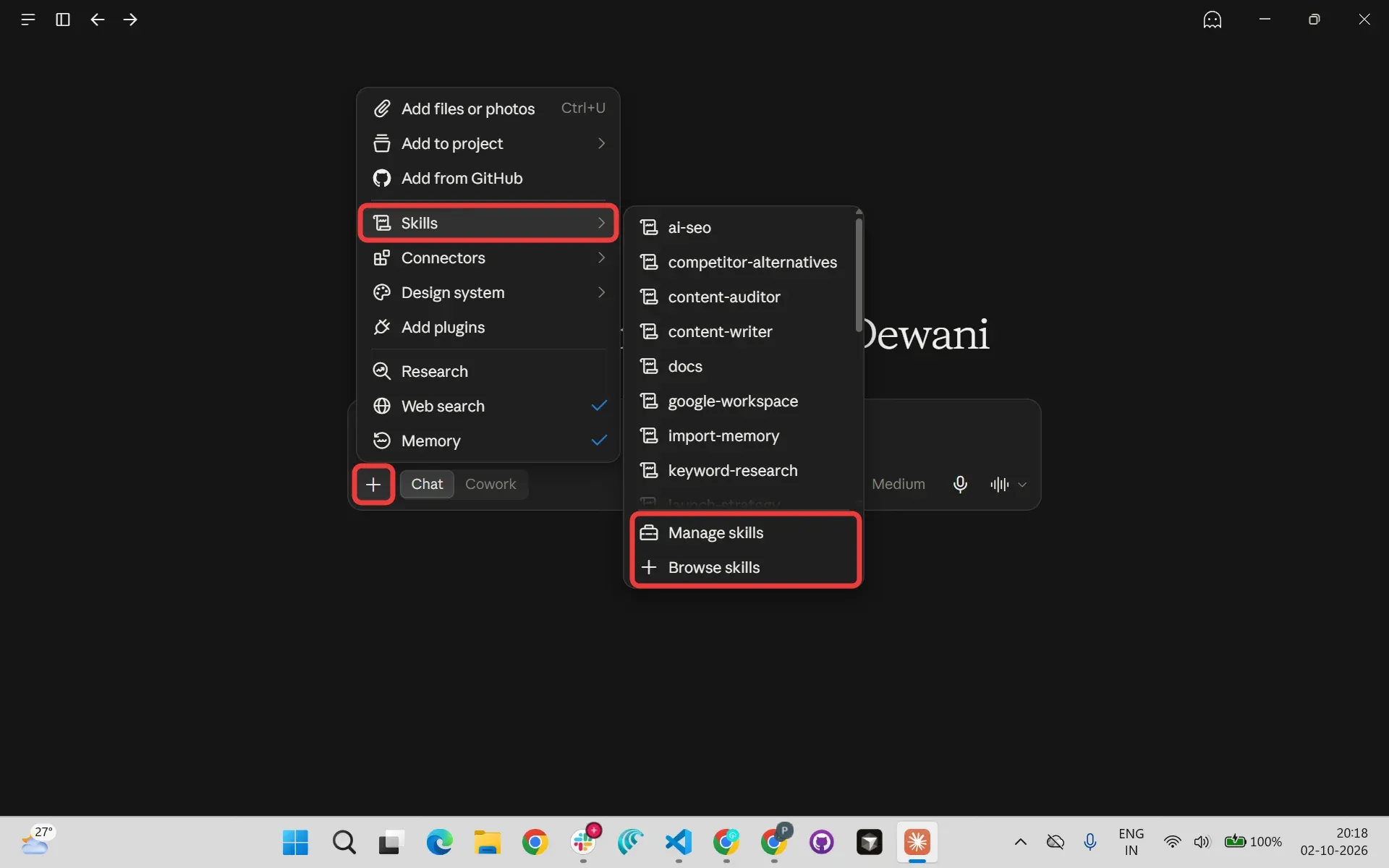
Add a skill from the Claude chat box in 2 steps:
- Click the "+" icon below the Claude chat box.
- In Claude's "+" menu, choose "Skills", then "Browse skills", and add the skill you want.
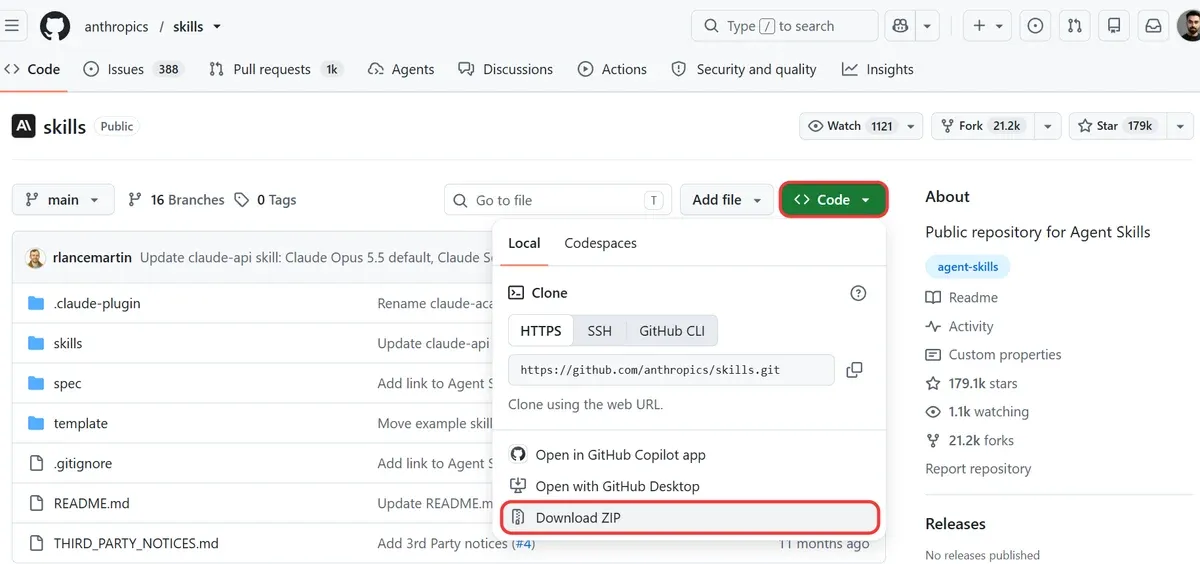
Upload a skill from GitHub to the Claude desktop app or claude.ai in 6 steps:
- On GitHub, open the repository (repo) of the skill you want, click the green "Code" button and choose "Download ZIP".
- Unzip the ZIP file you downloaded from GitHub.
- Open SKILL.md, the skill's main file, in a text editor such as Notepad or TextEdit. Shorten the description at the top of SKILL.md if it is over 200 characters, the limit for skills uploaded to Claude.[4]
- Zip only the folder of the skill you want, the folder that holds the skill's SKILL.md file, not the whole repo.
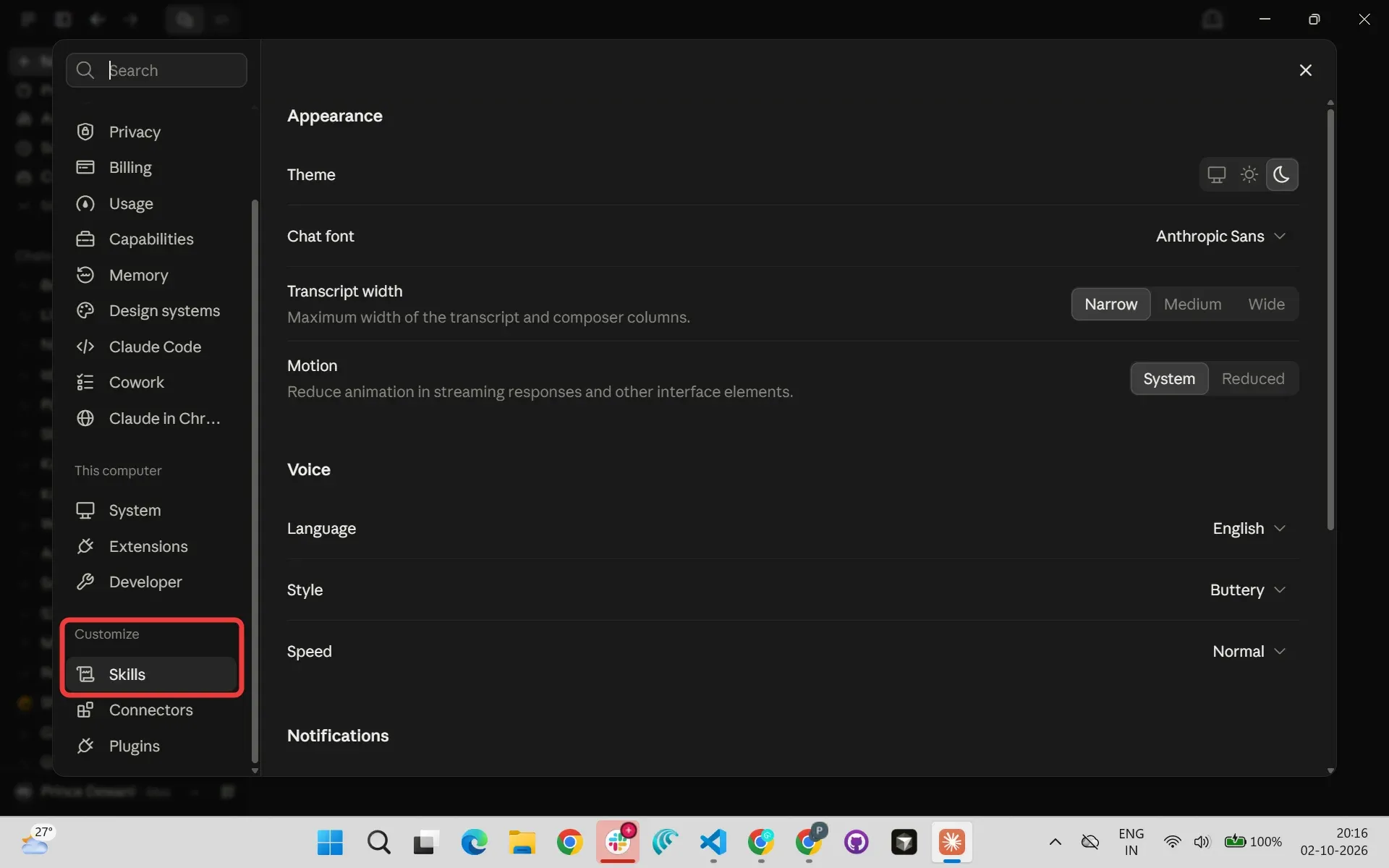
- In the Claude desktop app, open Settings and select "Skills" under the "Customize" tab. On claude.ai, go to "Customize" > "Skills".
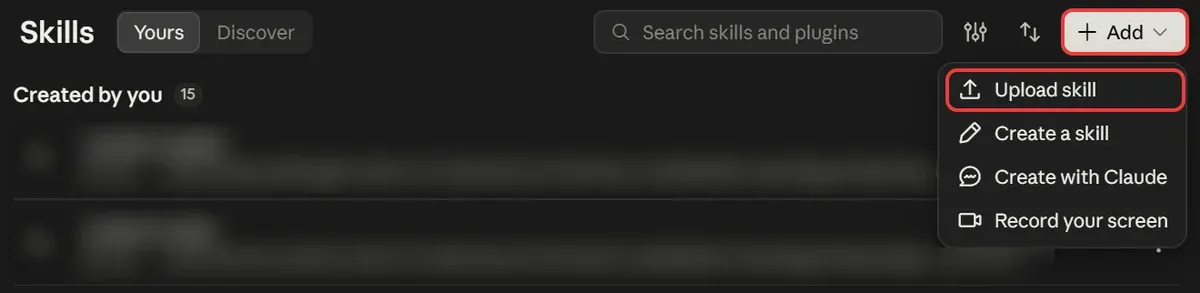
- Click "+ Add" on the right-hand side of the Skills page, choose "Upload skill" and select your ZIP file.
Here are the steps to use a Claude skill once it is added:
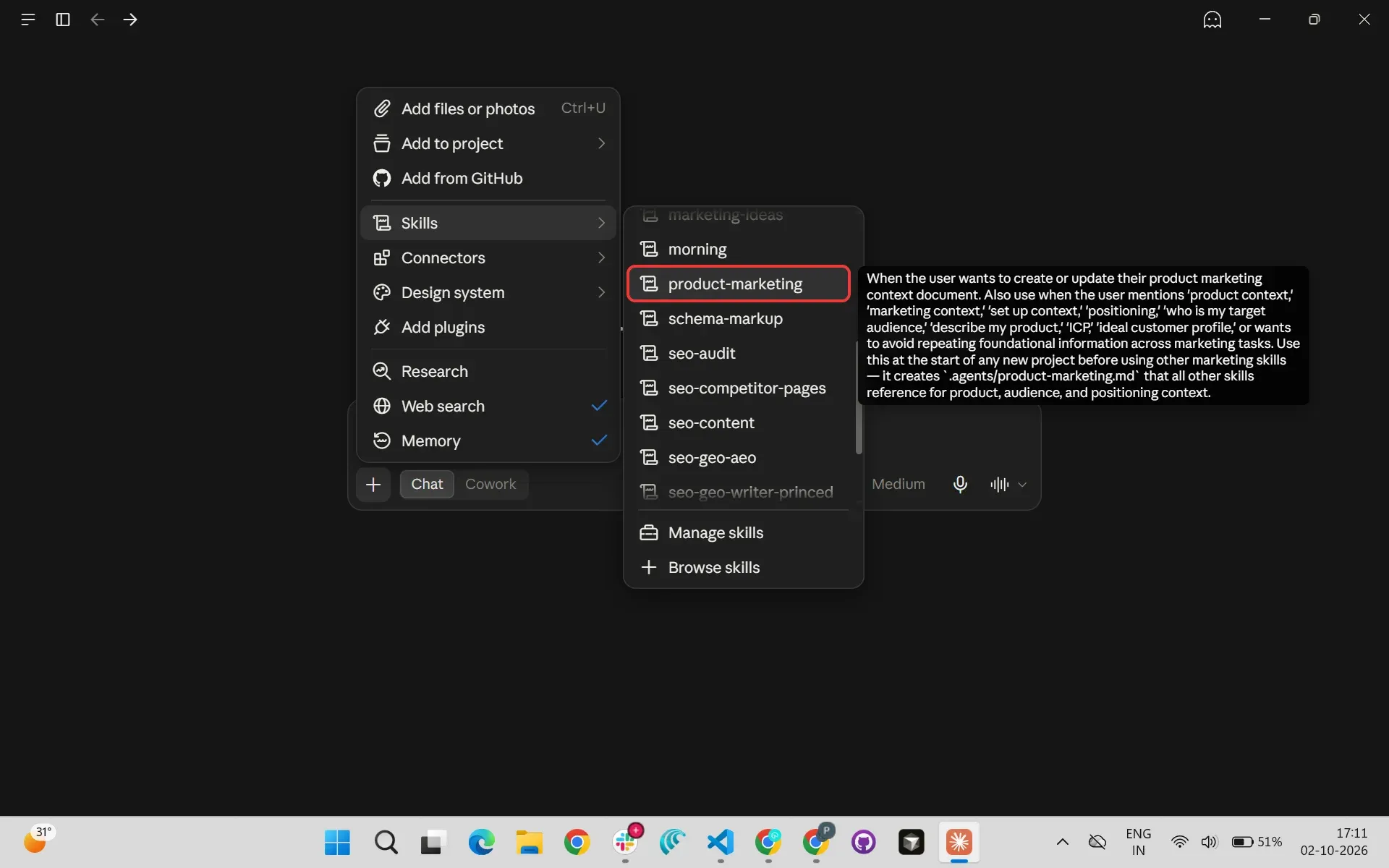
- Click the "+" icon below the Claude chat box.
- Open "Skills" and pick the skill. Hover a skill to read what it does.
In Claude Code (VS Code or terminal)
For Claude Code, you install a skill by running the skill's npx skills add command in a terminal (command window), such as the VS Code terminal.
The npx skills add command runs the skills CLI, a command-line tool that installs agent skills for AI coding agents such as Claude Code and OpenAI Codex. The npx command needs Node.js, a free program that runs JavaScript code on your computer.
Install a skill for Claude Code in 6 steps:
- Find the skill you want on skills.sh, Vercel's directory of agent skills, or in the skill's GitHub repo, and copy the skill's install command.
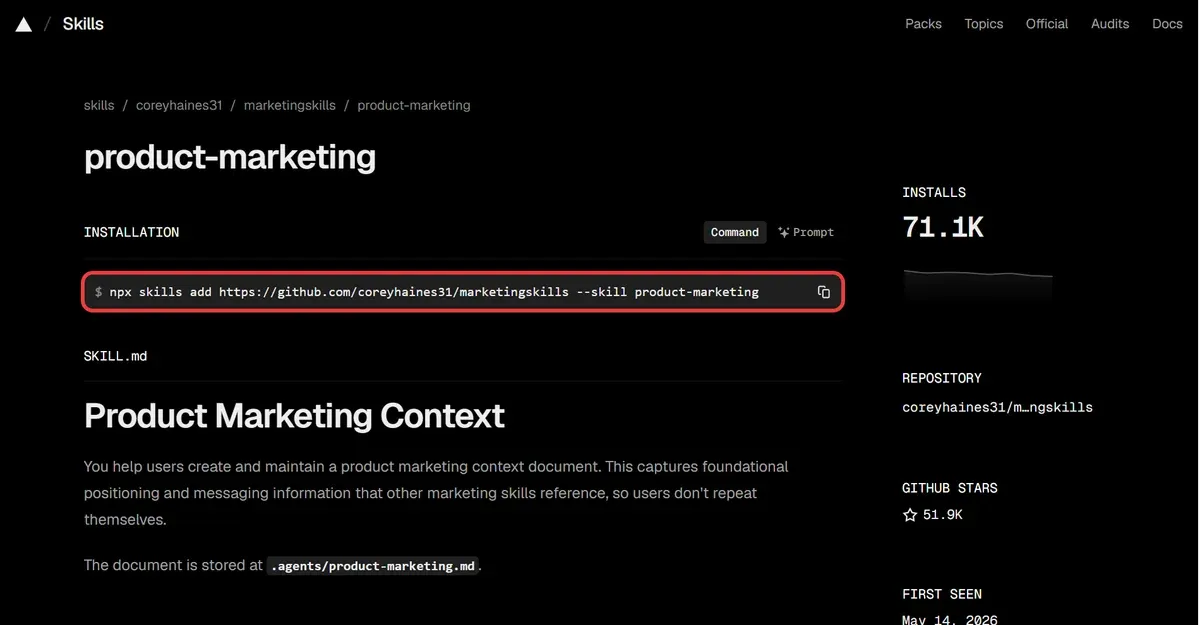
- In VS Code, open "Terminal" > "New Terminal", paste the skill's
npx skills addcommand and press Enter. - At the skills CLI question "Which agents do you want to install to?", type "claude" in the "Additional agents" search box, press Space to select Claude Code, then press Enter. Claude Code is not in the "Universal (.agents/skills)" group, so you have to select Claude Code yourself.
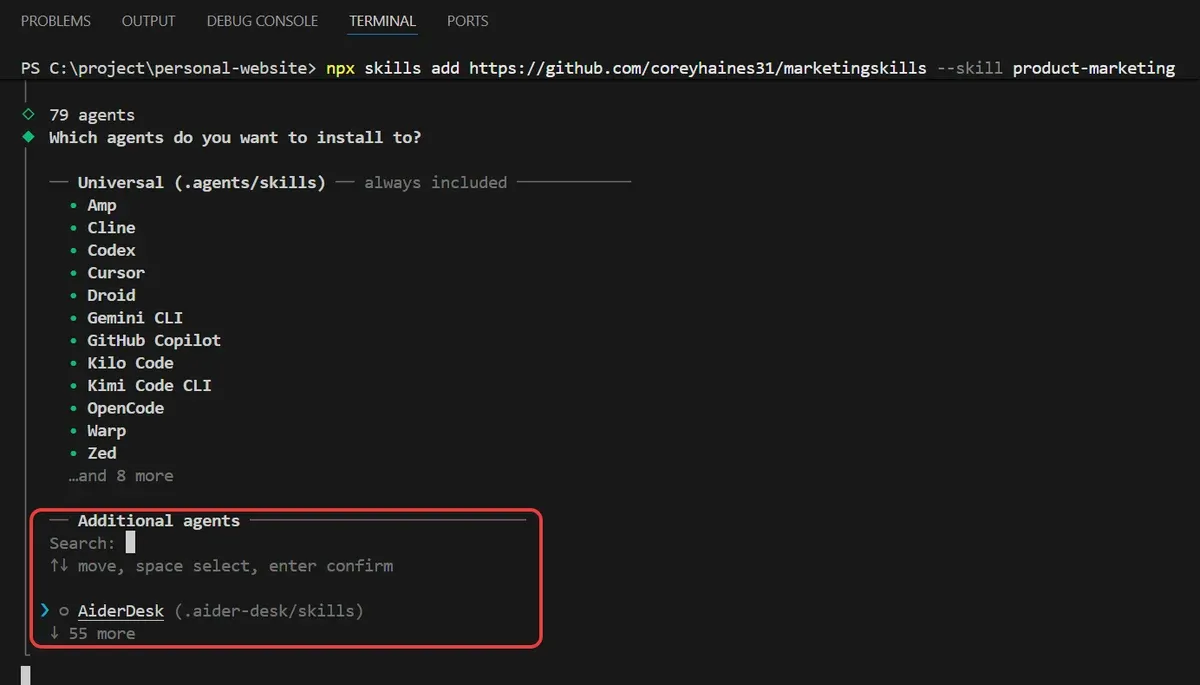
When I installed product-marketing with the skills CLI and did not select Claude Code, the product-marketing skill landed only in .agents/skills, a folder Claude Code does not read.
- At "Installation scope", choose "Project" to install the skill only for the project folder open in VS Code.
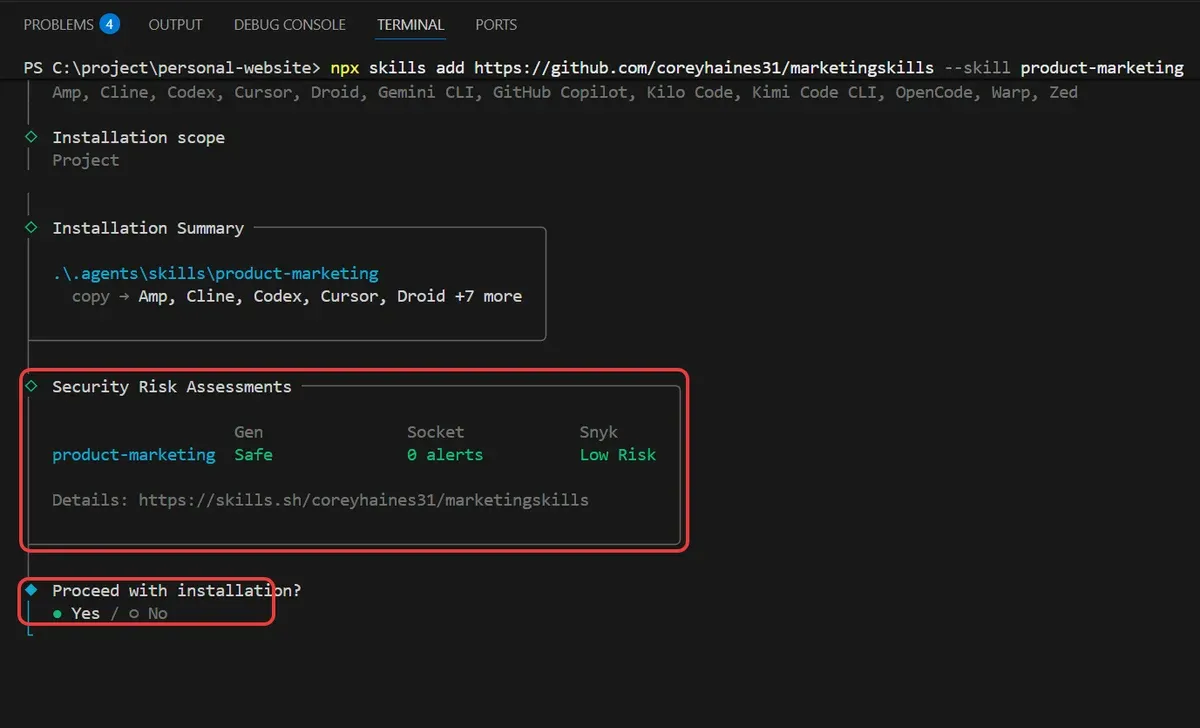
- Check the "Security Risk Assessments" from Gen, Socket and Snyk, and if all 3 look clean, choose "Yes" at "Proceed with installation?" The product-marketing skill got "Safe" from Gen, "0 alerts" from Socket and "Low Risk" from Snyk.
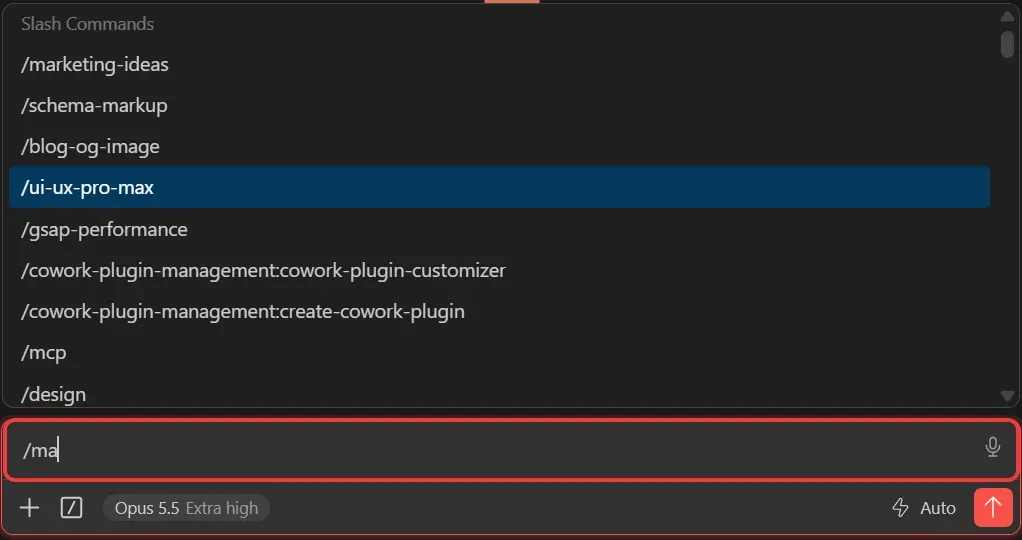
- In a new Claude Code chat, type "/" and the skill name, then pick the skill from the "Slash Commands" list above the prompt box.
Adding --agent claude-code to an npx skills add command skips the "Which agents do you want to install to?" question and installs the skill in the folder Claude Code reads. The one-line command that installs the product-marketing skill for Claude Code is:
npx skills add https://github.com/coreyhaines31/marketingskills --skill product-marketing --agent claude-code
Install the product-marketing skill first if you use Corey Haines' Marketing Skills pack, because the pack's other marketing skills read the .agents/product-marketing.md context file that product-marketing creates.
What Mistakes Should You Avoid with Claude Skills?
Avoid 5 mistakes with Claude skills: running a skill in the wrong mode, model or effort, doing several tasks in one chat, installing overlapping skills, running a skill before checking what it needs, and trusting the output without checking the facts. The Claude skills best practices I follow now come from 5 mistakes I ran into myself.
Running a skill in the wrong mode, model or effort
Running a Claude skill in the wrong mode, model or effort makes the skill keep stopping for your approval, use more tokens than it needs or leave Claude checking less of its own work. The permission mode decides when Claude Code asks for your approval, the Claude model affects how many tokens and how much time a task takes, and the effort level decides how much Claude reasons and checks its work.
In my experience, use Claude Opus 5.5 or Claude Opus 5 to run Claude skills, and do not use Claude Fable 5.1 unless the task is very large or complex.
For a simple or medium task, Claude Opus 5.5 or Claude Opus 5 takes fewer tokens and less time than Claude Fable 5.1 and gives almost the same result, in my personal experience.
Depending on your Claude plan, Claude Code can bill Fable usage to usage credits instead of your plan's included limits.[5]
Here are the steps to switch Claude Code to Claude Opus 5.5 or any other model:
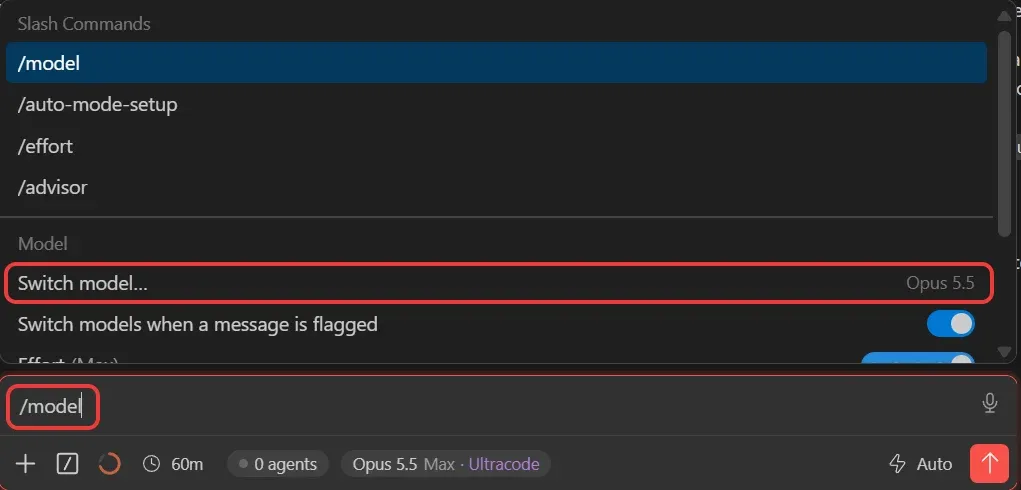
- In the Claude Code prompt box, type
/modeland press Enter. - From the list of models, select Claude Opus 5.5 or Claude Opus 5, whichever model you want.
You can also type / in the Claude Code prompt box and click "Switch model..." under "Model" to open the same list of models.
Before I run a skill in Claude Code, I set the permission mode to "Auto", "Effort" to max and the "Ultracode" switch on. Ultracode is a Claude Code switch that runs each big task as a dynamic workflow, where many helper agents, called subagents, work at once and can cross-check each other's findings.
In my experience, Claude makes up fewer facts (hallucinates less) and follows a skill more closely with Auto mode, max effort and Ultracode on.
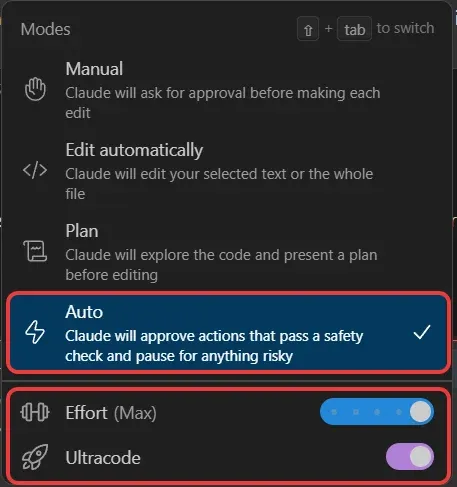
In VS Code, a "Manual" or "Edit automatically" permission mode you picked carries into new Claude Code chats.
Claude Code's "Manual" and "Edit automatically" modes ask before most terminal commands, and its "Plan" mode edits nothing until you approve, so a multi-step Claude skill keeps stopping. In Claude Code's Auto mode, a classifier, a second AI model, reviews most actions instead of asking you.
Claude Opus 5.5 defaults to medium effort in Claude Code.[5] At a higher effort level, Claude Opus 5.5 verifies more of its work before answering.
In VS Code, the Ultracode switch appears only when dynamic workflows are enabled, on a supported model and Claude Code v2.1.284 or later. On a Claude Pro plan, Ultracode also needs the "Dynamic workflows" row turned on in /config, Claude Code's settings menu.
In Claude Code, max effort can overthink a task, and Ultracode makes each request slower and uses up your usage limits sooner. Claude Code's Auto mode reduces permission prompts but does not guarantee safety.[6]
Doing several tasks in one chat
In my experience, doing several tasks in one long Claude Code chat creates a context bottleneck, and Claude hallucinates more. A context bottleneck happens when the context window, Claude's working memory for one chat, fills up with earlier work.
I start each new task in a new Claude Code chat, or run /clear to start fresh with an empty context window. In every new Claude Code chat, I set max effort and Ultracode again, because both settings last one session by default.
Claude's performance drops as the context window fills, and Claude may start "forgetting" earlier instructions.[7]
When a full Claude Code chat is summarized, each skill you invoked keeps only its first 5,000 tokens, within a shared 25,000-token budget, so the oldest skills can drop out entirely.[8]
Installing overlapping skills
Installing overlapping Claude skills, 2 or more skills that do the same job, wastes tokens in every session and leaves Claude to choose which copy runs.
Keep one Claude skill per job, and remove extra copies with npx skills remove or by deleting the skill's folder. For a skill synced from your claude.ai account, turn the skill off on claude.ai, because Claude Code downloads a deleted synced folder again.
Each installed Claude skill's name and description loads in every session, at about 100 tokens per skill.
My Claude Code setup has 2 copies of Corey Haines' seo-audit skill: one in my personal skills folder and one synced from my claude.ai account. Anthropic's Marketing plugin ships its own seo-audit skill, so one Claude Code setup can hold 3 skills named seo-audit.
In Claude Code, /seo-audit runs my personal seo-audit copy, my claude.ai-synced seo-audit copy runs only as /anthropic-skills:seo-audit, and the Marketing plugin's copy would run as /marketing:seo-audit. A plain request such as "audit this page" leaves Claude to choose which seo-audit copy runs.
Running a skill before checking what it needs
Running a Claude skill before checking what it needs makes the skill ask a long list of questions, follow old instructions or fail to run its scripts.
Create each setup file a Claude skill needs once, and check a skill's requirements, such as Python, before you trust its output.
Update each Claude skill the way you installed it, and update a skill synced from claude.ai on claude.ai itself. A skill installed with npx skills add updates with one command:
npx skills update
The skills in Corey Haines' Marketing Skills pack look for .agents/product-marketing.md, a context file that his product-marketing skill writes. Without the product-marketing.md file, my seo-audit copy asked all 14 of its setup questions and my ai-seo copy asked all 18.
A first draft of product-marketing.md answers only about 1 of seo-audit's 14 questions and 2 of ai-seo's 18, so fill in the rest of the file yourself.
Impeccable refused to review anything until its init interview, a round of setup questions, wrote a PRODUCT.md context file. Anthropic's brand-review skill asks for a brand style guide and, without one, does "a general review for clarity, consistency, and professionalism".
A stale skill copy runs old instructions. My copy of Claude SEO's seo-content sub-skill, synced from claude.ai, was v1.7.0 while the GitHub version was v2.4.0, and one of its reference files was missing.
When a package Impeccable's design detector needs is missing, the detector runs in a weaker mode, and in my run all 6 issues it flagged were false positives.
Trusting the output without checking the facts
Trusting a Claude skill's output without checking the facts lets wrong claims reach your readers, because a skill may not check facts, and the skill's own instructions can be wrong.
Give a Claude skill the source, such as your live product page, and check every claim yourself before the content goes out.
Anthropic's brand-review skill flags claims that need proof but never checks them against your product page. My LinkedIn post draft about my Internal Link Checker had the right facts only because I read the tool's live page and ran the tool myself.
My copy of the ai-seo skill wrongly says that blocking Google-Extended stops Google's AI Overviews from citing you. Google-Extended, which controls whether Google's Gemini models can use your pages, "does not impact a site's inclusion in Google Search", where AI Overviews appear.[9]
How Do You Write Your Own Claude Skill?
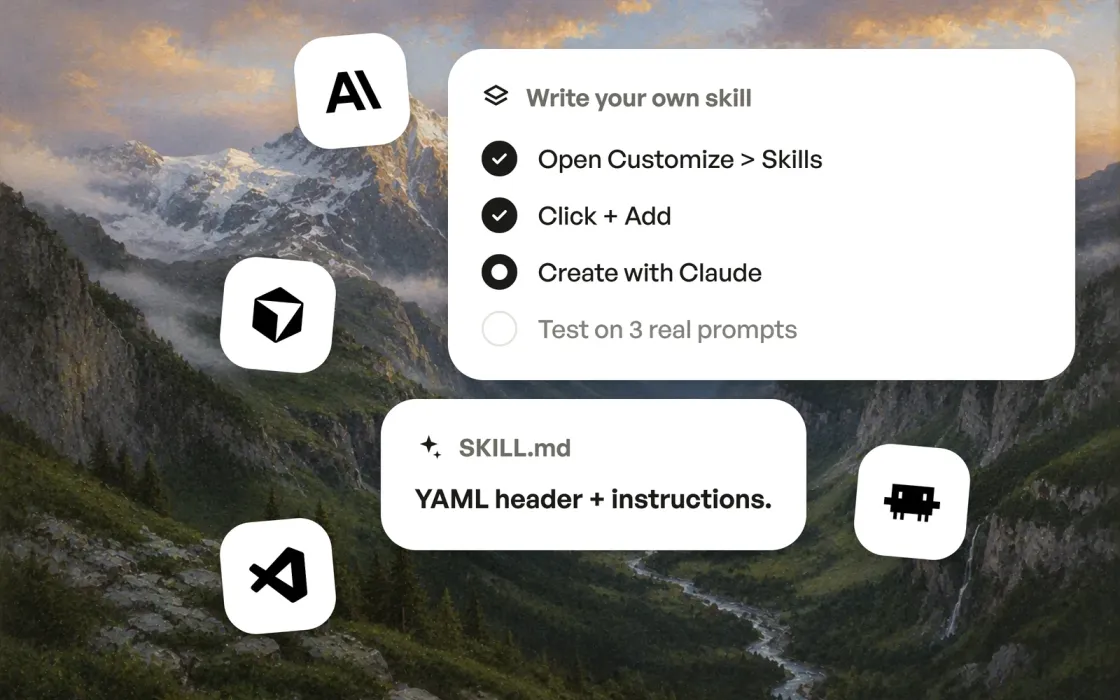
To write your own Claude skill in the Claude desktop app, open Settings, select "Skills" under the "Customize" tab, then click "+ Add" on the right-hand side and choose "Create a skill", "Create with Claude" or "Record your screen". On claude.ai, the same "Skills" page is under "Customize" > "Skills".
Use "Upload skill", the fourth "+ Add" option, when you already have a ready-made skill, such as one you downloaded from GitHub.
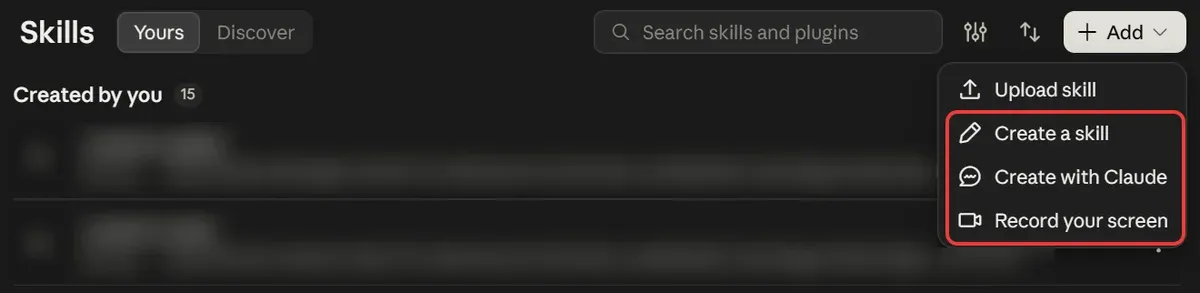
Create a skill
"Create a skill" lets you write a Claude skill yourself. Choose "Create a skill" when you can already list the steps of your task.
With "Create a skill", you write 3 parts of the skill:
- Name: a short, clear name for the skill, such as seo-audit.
- Description: what the skill does and when Claude should use it.
- Instructions: the steps of your task, in order.
Create with Claude
"Create with Claude" builds a Claude skill with you in a chat. Pick "Create with Claude" when you know the goal but not how to structure a skill.
"Create with Claude" opens a new chat with this prompt already typed: "Let's create a skill together using your skill-creator skill. First ask me what the skill should do."
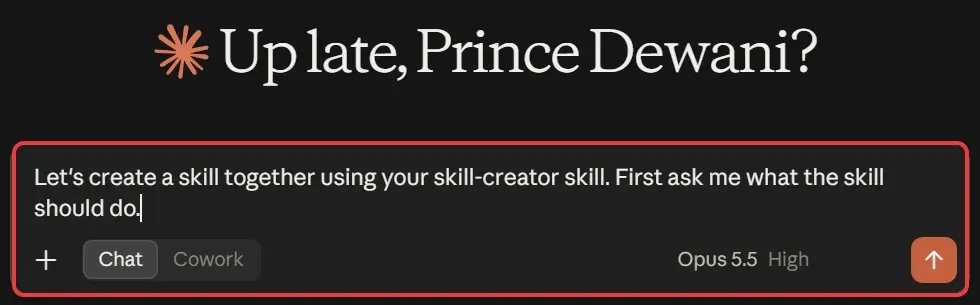
In a "Create with Claude" chat, Claude interviews you about your task and drafts the SKILL.md file with skill-creator, Anthropic's skill for building skills.
When I used skill-creator in Claude Code to build reddit-box, a skill that summarises Reddit threads for my blog, skill-creator wrote a 97-line SKILL.md and 3 test prompts.
Record your screen
"Record your screen" captures your screen, clicks, typing and voice while you do a task once, and Claude turns the recording into a repeatable skill.
Use "Record your screen" for rigorous, important work Claude doesn't know how to do, especially manual tasks across browsers and apps.
Recording a skill is officially supported only in the Claude desktop app for Mac, in Cowork (the Claude mode that carries out tasks across your files and tools), on the Pro, Max and Team plans.[4]
The "Record a skill" dialog warns: "Don't type passwords or secrets, or display sensitive information or private conversations while recording."
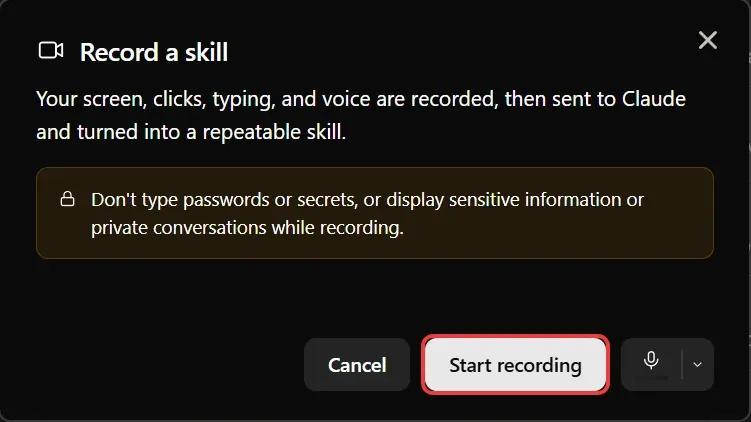
To record a skill with "Record your screen":
- Click "Start recording".
- Do the task once.
- Click "Done".
- Review the skill Claude proposes and click "Save".
Claude skills best practices
The best practices of using Claude skills are to add proper context that Claude does not have at that time, write the skill's description in the third person, keep SKILL.md under 500 to 800 lines and test the skill on at least 3 real prompts.[10]
- Add proper context that Claude does not have at that time, and assume Claude is already very smart.
- Write the skill's description in the third person ("Audits a page for SEO", not "I can audit your page"), because Claude reads the description to decide when to use the skill.
- Keep SKILL.md under 500 lines, or 800 lines at most in my experience, and put extra detail in reference files linked directly from SKILL.md.
- Test the skill on at least 3 real prompts before you rely on it.
I add one rule of my own: make a skill check facts about your setup, such as which tools are installed, instead of writing those facts into the skill. My design-workflow skill's tool-status list said UI UX Pro Max was installed when it wasn't.
Resources and References Used for Research
- [1] Agent Skills - Anthropic (Oct 2026)
- [2] Agent Skills Overview - agentskills.io (Oct 2026)
- [3] Use skills in Claude - Anthropic (Oct 2026)
- [4] How to create custom skills - Anthropic (Jul 2026)
- [5] Model configuration - Anthropic (Oct 2026)
- [6] Choose a permission mode - Anthropic (Oct 2026)
- [7] Best practices for Claude Code - Anthropic (Oct 2026)
- [8] Extend Claude with skills - Anthropic (Oct 2026)
- [9] List of Google's common crawlers - Google (Jul 2026)
- [10] Skill authoring best practices - Anthropic (Oct 2026)
Frequently Asked Questions
Are Claude skills free?
Yes, Claude skills are free to use, even on Claude's Free plan, once the "Code execution and file creation" setting is turned on. All 14 Claude skills in my best Claude skills list are free on GitHub under the MIT or Apache 2.0 open-source license. Claude Code, Claude's AI agent for files and code, is not part of the Free plan. Claude Code needs a Pro, Max, Team or Enterprise plan, or a pay-as-you-go Claude Console account.
Are Claude skills worth it?
Yes, Claude skills are worth it for any task you repeat, such as an SEO audit or a landing page rewrite. A simple rule is to make a Claude skill the third time you paste the same multi-step instructions into a chat. For a one-off task, typing a normal prompt is quicker than building a Claude skill. In my tests, a Claude skill was worth keeping only when the skill changed the output on a real task.
What is the difference between a Claude skill and a Claude Project?
A Claude Project keeps its files and instructions loaded in every chat inside the Project, while a Claude skill loads in any chat when your request needs it. Use a Claude Project for work that builds up context over time, such as a product launch. Use a Claude skill for a repeatable procedure, such as applying your brand guidelines. In Claude Code, the CLAUDE.md instructions file loads in every session, while skills load only when needed.
Why is Claude not using my skill?
Claude skips a skill that is switched off or whose description of when to use it does not match your request. Check the skill's switch on the Skills page of the Claude app or claude.ai. With many skills installed, Claude Code drops the descriptions of your least-used skills to fit a size limit, so Claude can miss them. Naming the skill in your request helps Claude pick it, and /skill-name runs the skill directly in Claude Code.
Do Claude skills sync between claude.ai and Claude Code?
Yes, but only one way: Claude skills sync from your claude.ai account to Claude Code, never back. Claude Code version 2.1.273 or later loads the skills turned on in your claude.ai account when you sign in with the same account. A skill installed in Claude Code stays on your computer. To use a Claude Code skill in claude.ai chats or the Claude desktop app's Cowork tab, zip the skill's folder and upload the ZIP on the Skills page.
Can I use Claude skills in Codex, Cursor or ChatGPT?
Yes, Claude skills work in OpenAI Codex, Cursor, ChatGPT, Gemini CLI and GitHub Copilot, which all support the same open Agent Skills format. In ChatGPT, Claude skills work in the ChatGPT desktop app. Codex and Cursor read skills from the .agents/skills folder, and Cursor also reads Claude Code's .claude/skills folder. Features only Claude Code adds, such as running a skill in a subagent (a separate helper agent), may not work outside Claude Code.
Can I share Claude skills with my team?
Yes, Claude Team and Enterprise plans let you share skills you created with colleagues, if an organization owner has enabled sharing in Organization settings. To share a Claude skill, open the three-dot menu next to the skill and choose "Share". Colleagues can use a shared skill but cannot edit it, and they get your updates automatically. In Claude Code, add the skill's folder to your team's Git repository, or package the skill as a plugin (an installable bundle).
What is the difference between a Claude skill and a plugin?
A Claude skill is one set of instructions for one task, while a Claude Code plugin is an installable bundle that can hold several skills plus other add-ons, such as slash commands, subagents (helper agents) and connections to outside tools. Install a single Claude skill when you need one job done. Install a plugin, such as Superpowers or Claude SEO, when you want a whole toolkit that installs and updates as one unit.